Please note that as of the time this tutorial was written, due to the way the CIA VoIP servers are configured, the Motorola router must receive a public IP address on the WAN interface in order for it to work with the CIA service. If you're using cable internet, this means that the VT2442's WAN port has to be connected directly to the modem. The same applies for DSL, with the additional requirement that the DSL modem should be configured in bridge mode and the WAN port of the VT2442 should be configured to use PPPoE.
First, obtain the SIP credentials for your CIA account as described here.
Connect all the cables: power cord, the blue WAN port to your modem (or router), your PC to one of the yellow LAN ports and a phone into the green Phone 1 port. Wait a few seconds for the router to power up, then open a web browser and type http://192.168.15.1
Login with username Admin and blank password
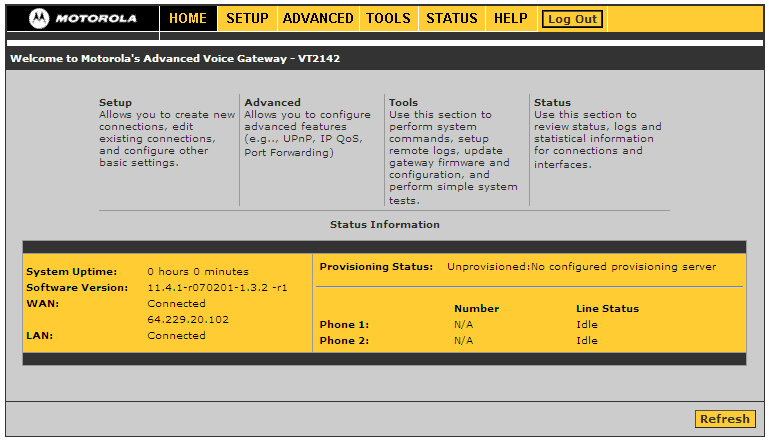
Click Advanced on the top menu, then Voice Port 1 on the left

Enter the following settings:
- Display name: can be anything, you can put your name here
- Phone number: this is the number that CIA gave you, something like 4161234567
- User name: same as the phone number
- Password: the SIP password from XML file. Usually it looks like l0123456@cia.com
- SIP Server: this is in the SIP server from the XML file, something like cms1.tor.cia.com
- SIP Port: 5060
- Registration Server: same as SIP Server
- Registration Port: 5060
- Dial Plan: copy/paste the following string
*xx|[2-9]xxxxxxxxx|1[2-9]xx[2-9]xxxxxx|911|0xx.T
- (optional) Preferred codec: the default value, PCMU means to use the g711 codec. If you wish to change the codec to g729 type G729 in this field
If you're having issues dialing DTMF digits (when using calling cards, dialing phone extensions, etc) go to the Advanced on the top menu, then Voice Common on the left:
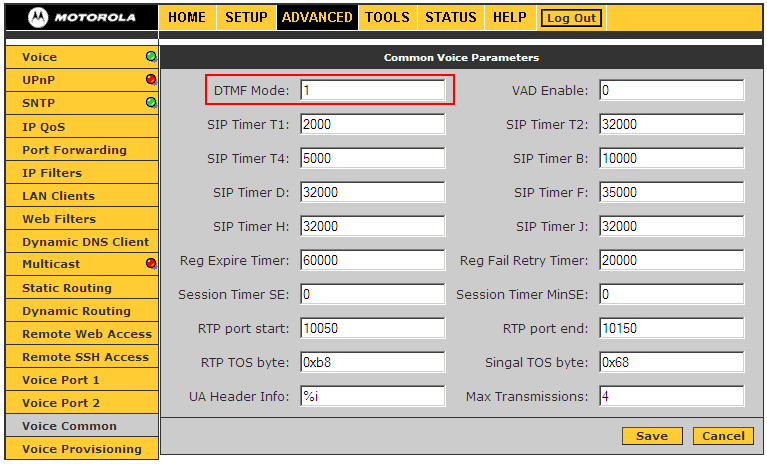
Try all the values between 1 and 4 for the DTMF Mode setting.
To factory reset the adapter
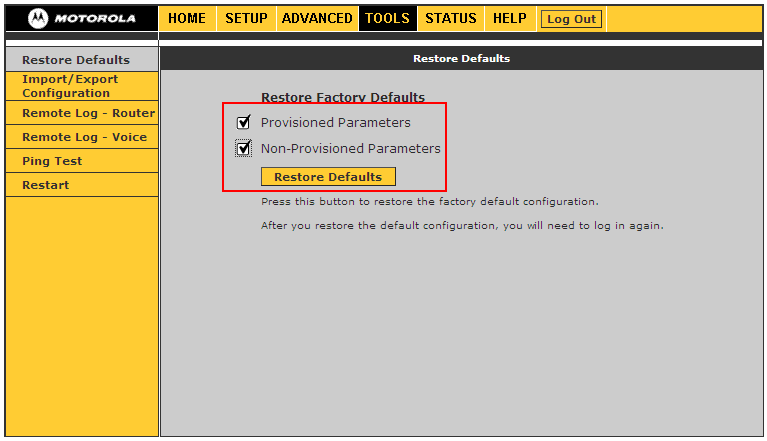
Go to the Tools menu at the top and then Restore Defaults on the left. Check the boxes that apply (Provisioned Parameters to reset the VoIP settings, Non-Provisioned Parameters to reset the router settings) and click Restore Defaults